

Dealing with paper jams and misfeeds in your Canon printer can be frustrating. However, most of these issues stem from dirty pickup rollers that have accumulated dust, paper debris, and ink residue over time. According to Mech Office, regular maintenance of your printer’s internal components can extend its lifespan and maintain optimal performance. Learning how to manually clean your Canon pickup roller is a simple yet effective solution that takes only a few minutes and requires minimal tools.
Understanding Canon Pickup Rollers
Before diving into the cleaning process, it’s important to understand what pickup rollers do. These rubber components are responsible for grabbing paper from the input tray and feeding it into the printer. Over time, the rubber surface becomes smooth and contaminated, reducing its grip on paper. This results in multiple sheet feeding, paper jams, or no paper pickup at all.
Additionally, environmental factors like humidity and dust contribute to roller deterioration. Therefore, regular cleaning every few months can prevent most feeding issues. For comprehensive guidance on roller cleaning canon printers, following manufacturer recommendations ensures you maintain warranty coverage while keeping your device running smoothly.
Tools and Materials Needed
Gathering the right supplies beforehand makes the cleaning process efficient and safe. You will need a few basic items that are likely already in your home or office.
Start with lint-free cloths or microfiber towels. These materials won’t leave residue on the rollers. Next, obtain isopropyl alcohol with at least 70% concentration, though 91% or higher works best for faster evaporation. Cotton swabs help reach tight spaces around the rollers.
Furthermore, having a flashlight assists in inspecting hard-to-see areas. Some users also keep a small bowl for the alcohol to dip their cloth. Avoid using tap water, paper towels, or harsh chemicals, as these can damage the rubber surface or leave harmful residue.
Safety Precautions Before Starting
Taking proper safety measures protects both you and your printer from potential damage. Always turn off your Canon printer completely and unplug it from the power source before beginning any maintenance work.
Moreover, allow the printer to cool down for at least 15 minutes if you’ve recently used it. The internal components, especially near the fuser unit, can remain hot and cause burns. According to Canon’s official support documentation, users should never attempt maintenance while the device is powered on.
Work in a well-ventilated area when using isopropyl alcohol. Although it evaporates quickly, proper airflow prevents inhalation of fumes. Keep the alcohol away from open flames or heat sources, as it is highly flammable.
Locating the Pickup Roller
Finding the pickup roller varies slightly depending on your Canon printer model. However, most consumer models follow a similar design pattern that makes access straightforward.
First, open the paper input tray completely and remove any remaining paper. Look inside the tray area where paper first enters the printer. You should see a dark rubber roller positioned horizontally. This is typically the pickup roller.
In some models, you may need to remove the paper tray entirely by lifting it out of its slot. Additionally, certain Canon printers have multiple rollers, including separation rollers near the pickup roller. Make sure you identify the correct component before proceeding with cleaning.
Step-by-Step Cleaning Process
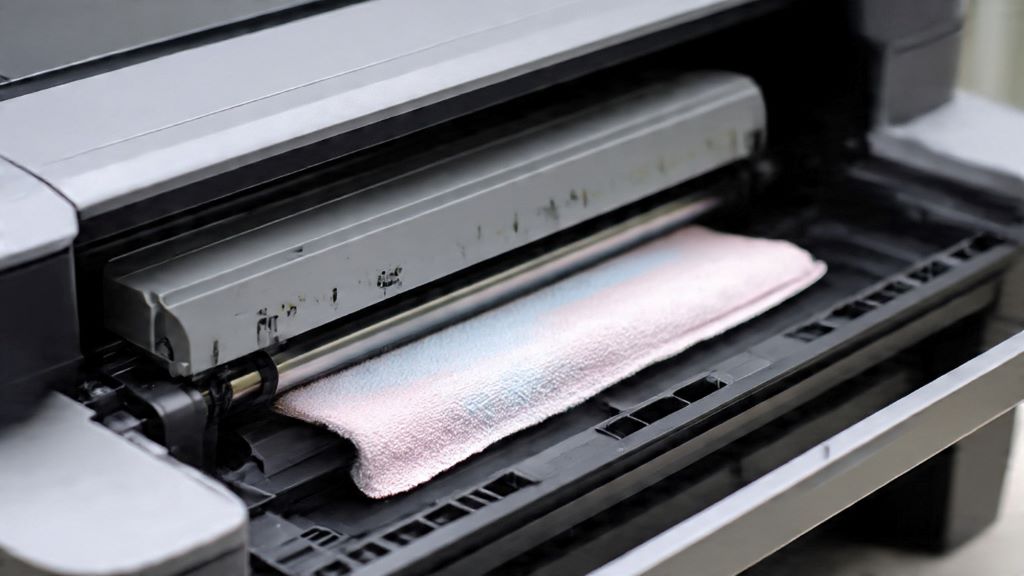
Now comes the actual cleaning procedure. Start by dampening your lint-free cloth with isopropyl alcohol. The cloth should be moist but not dripping wet.
Gently wipe the pickup roller’s surface while rotating it with your other hand. Turn the roller away from you to clean all sides evenly. Apply moderate pressure to remove stubborn residue without damaging the rubber. You’ll notice the cloth collecting gray or black debris, which is the accumulated dirt and paper dust.
For hard-to-reach areas, use cotton swabs dipped in alcohol. These work particularly well for cleaning the roller’s edges and the areas where it connects to the printer frame. Continue wiping until the cloth comes away clean.
After cleaning, let the roller air-dry completely before reassembling. The alcohol should evaporate within two to three minutes. Never use heat sources to speed up drying, as this can warp the rubber.
Cleaning the Separation Pad
While you have access to the paper path, it’s wise to clean the separation pad as well. This component works in tandem with the pickup roller to ensure single-sheet feeding.
The separation pad is usually located directly opposite the pickup roller. It appears as a rectangular piece of cork-like material or rubber. Use the same cleaning method with isopropyl alcohol and a lint-free cloth.
Wipe the pad’s surface gently to remove paper dust and residue. Unlike the roller, the separation pad doesn’t rotate, so cleaning it takes less time. Nevertheless, maintaining both components together provides the best results for paper feeding performance.
Reassembly and Testing
Once everything has dried completely, it’s time to put your printer back together. Replace the paper tray carefully, ensuring it clicks into place securely.
Reload paper into the input tray, making sure the stack isn’t too thick. Overfilling the tray can cause feeding issues even with clean rollers. Connect the power cable and turn on your Canon printer.
Run a test print to verify that the cleaning resolved your feeding problems. Print several pages to ensure consistent performance. If issues persist, you may need to repeat the cleaning process or consider that the roller might be worn out and require replacement.
How Often Should You Clean
Establishing a regular maintenance schedule prevents problems before they start. Most Canon users should clean their pickup rollers every three to six months, depending on usage frequency.
However, high-volume printing environments may require monthly cleaning. Signs that immediate cleaning is needed include frequent paper jams, multiple sheets feeding at once, or the printer failing to pick up paper altogether.
Environmental factors also influence cleaning frequency. Dusty offices or locations with high humidity accelerate roller contamination. Therefore, adjusting your schedule based on your specific conditions ensures optimal performance.
When to Replace Instead of Clean
Cleaning extends roller life significantly, but these components don’t last forever. Rubber naturally degrades over time, becoming hard and smooth regardless of cleaning efforts.
If you’ve cleaned the roller thoroughly but still experience feeding problems, replacement might be necessary. Visible cracks, flat spots, or extremely shiny surfaces indicate worn-out rollers. Most Canon pickup rollers last between 50,000 and 100,000 pages, though this varies by model.
Replacement rollers are available through Canon authorized dealers or reputable third-party suppliers. Always verify compatibility with your specific printer model before purchasing. Installing a new roller is similar to cleaning, making it a straightforward DIY task.
Preventive Maintenance Tips
Beyond regular cleaning, several practices help maintain your Canon printer’s feeding mechanism. Use quality paper that meets Canon’s specifications. Cheap or dusty paper accelerates roller contamination and causes premature wear.
Store paper properly in a cool, dry place away from direct sunlight. Moisture-damaged paper sheds more fibers, which stick to rollers. Additionally, fan the paper stack before loading to prevent sheets from sticking together.
Keep your printer covered when not in use to minimize dust accumulation. Simple dust covers or even a clean cloth draped over the printer makes a significant difference. Furthermore, avoid touching the pickup roller with bare hands, as oils from your skin can reduce its effectiveness.
Conclusion
Manually cleaning your Canon pickup roller is an essential maintenance task that every printer owner should master. This simple procedure takes only a few minutes but can save you from frustrating paper jams and costly service calls. By gathering the right materials, following safety precautions, and using proper cleaning techniques, you can restore your printer’s feeding performance effectively.
Regular maintenance extends your printer’s lifespan and ensures consistent print quality. Remember to clean both the pickup roller and separation pad every few months, adjusting the frequency based on your usage patterns. When cleaning no longer solves feeding issues, don’t hesitate to replace worn components. With these practices in place, your Canon printer will continue delivering reliable performance for years to come.
Frequently Asked Questions
Can I use water instead of isopropyl alcohol to clean Canon pickup rollers?
Water is not recommended for cleaning pickup rollers. Unlike alcohol, water doesn’t evaporate quickly and can cause the rubber to swell or promote corrosion of metal components. Isopropyl alcohol dissolves residue effectively and evaporates within minutes, making it the ideal cleaning solution.
How do I know if my pickup roller needs replacement rather than cleaning?
Signs that indicate replacement include visible cracks in the rubber, extremely smooth or shiny surfaces, flat spots, or continued feeding problems after thorough cleaning. If the roller feels hard rather than slightly soft and pliable, it has likely degraded beyond effective cleaning.
Will cleaning the pickup roller void my Canon printer warranty?
Basic user maintenance like cleaning pickup rollers typically doesn’t void warranties. However, always consult your specific warranty documentation first. Avoid forcing components or disassembling parts beyond what’s accessible through normal paper path access points.
Can I use household cleaners or WD-40 on Canon pickup rollers?
Never use household cleaners, WD-40, or oil-based products on pickup rollers. These substances leave residue that makes rollers slippery and damages rubber over time. Stick exclusively to isopropyl alcohol or cleaning solutions specifically designed for printer rollers.
My Canon printer still jams after cleaning the pickup roller. What else could be wrong?
Other potential causes include worn separation pads, debris in the paper path, incorrect paper type, overfilled paper tray, or mechanical issues with the paper feed assembly. Check these components systematically, and if problems persist, contact Canon support or a qualified technician for diagnosis.
Related Topics:
The Future of Timber Framed Housing: Building Tomorrow’s Homes Today
